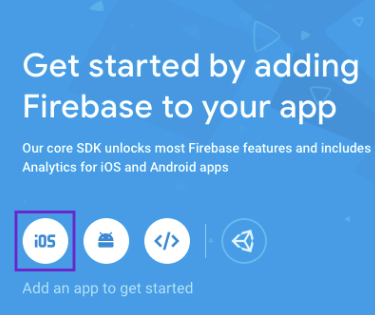
Click on the iOS icon as shown on the screen below.
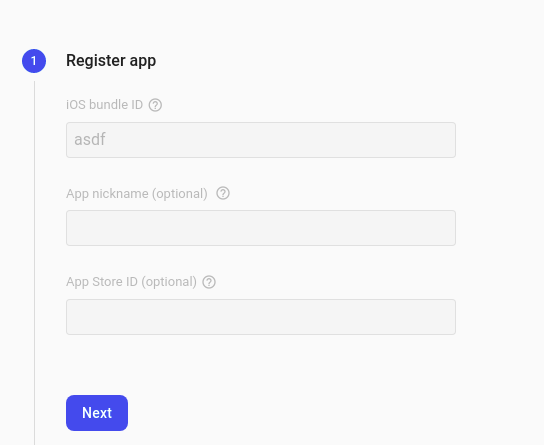
Register your Android app by providing the following details: a. iOS bundle name b. App nickname (optional) c. App Store ID (optional)
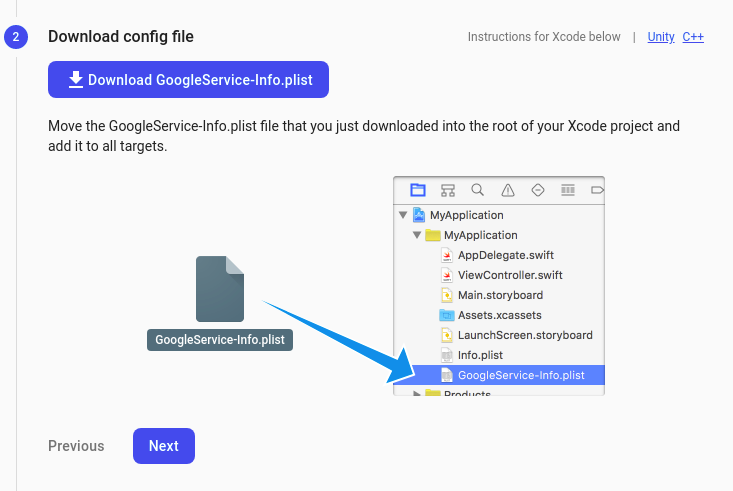
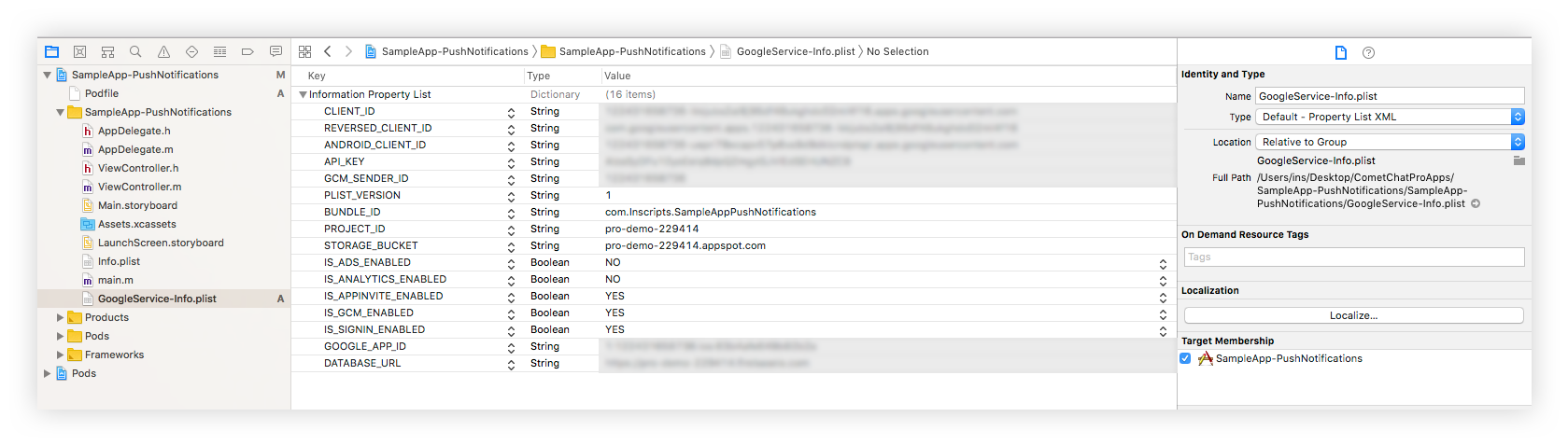
Download the GoogleService-Info.plist file and place it in the mentioned location of your project. Move your config file into the root of your Xcode project. If prompted, select to add the config file to all targets as follows.
We will Add Firebase SDK and Initialisation code later. So, click on ‘Next’, ‘Next’, and ‘Continue to the Console’.
On the Settings page you need to enter the following:
Set extension version
If you are setting it for the first time, Select V2 to start using the token-based version of the Push Notification extension.
If you already have an app using V1 and want to migrate your app to use V2, then Select V1 & V2 option. This ensures that the users viewing the older version of your app also receive Push Notifications.
Eventually, when all your users are on the latest version of your app, you can change this option to V2, thus turning off V1 (Topic-based) Push Notifications completely.
Select the platforms that you want to support
Select from Web, Android, Ionic, React Native, Flutter & iOS.
Notification payload settings
You can control if the notification key should be in the Payload or not. Learn more about the FCM Messages here.
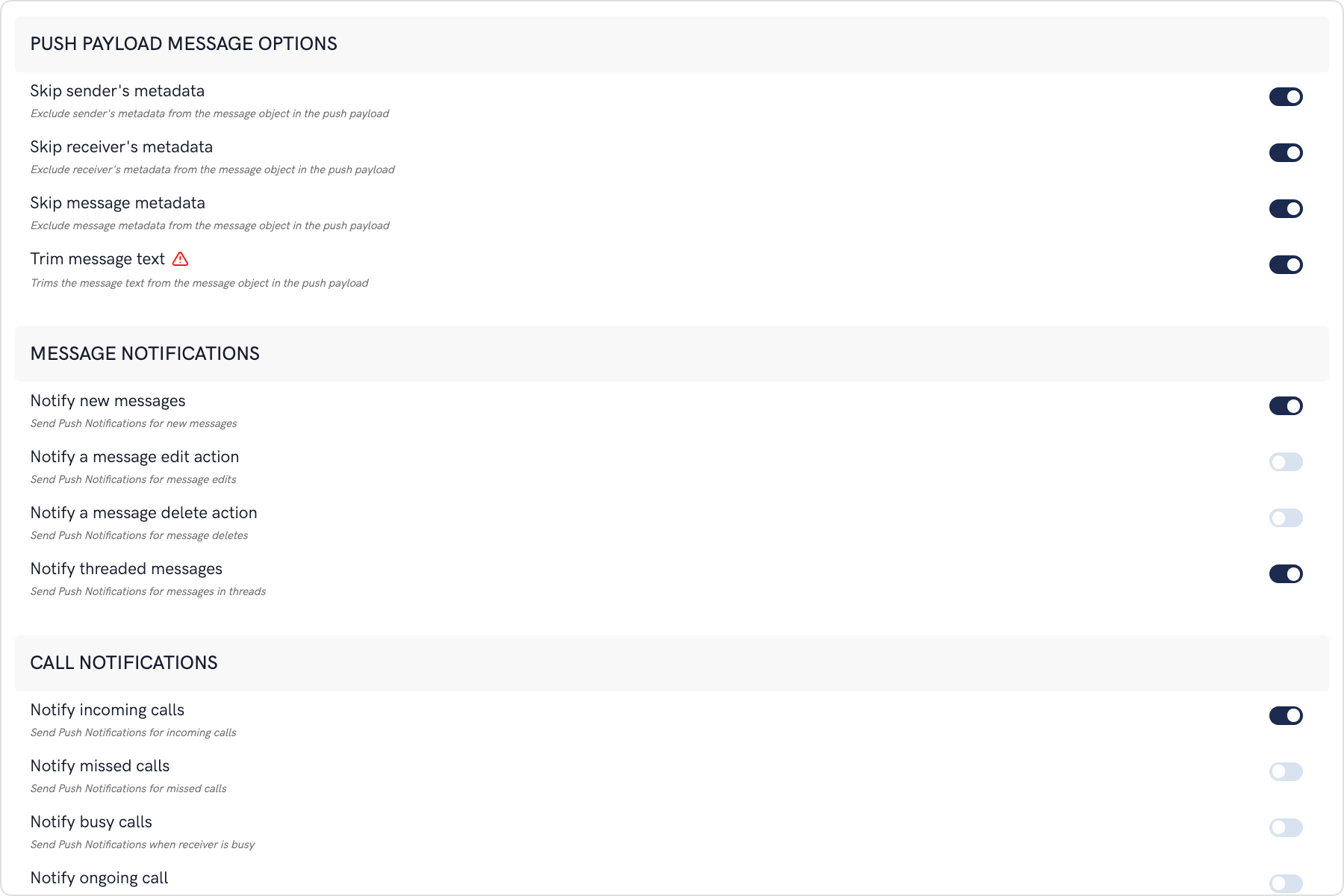
Push payload message options
The maximum payload size supported by FCM and APNs for push notifications is approximately 4 KB. Due to the inclusion of CometChat’s message object, the payload size may exceed this limit, potentially leading to non-delivery of push notifications for certain messages. The options provided allow you to remove the sender’s metadata, receiver’s metadata, message metadata and trim the content of the text field.
The message metadata includes the outputs of the Thumbnail Generation, Image Moderation, and Smart Replies extensions. You may want to retain this metadata if you need to customize the notification displayed to the end user based on these outputs.
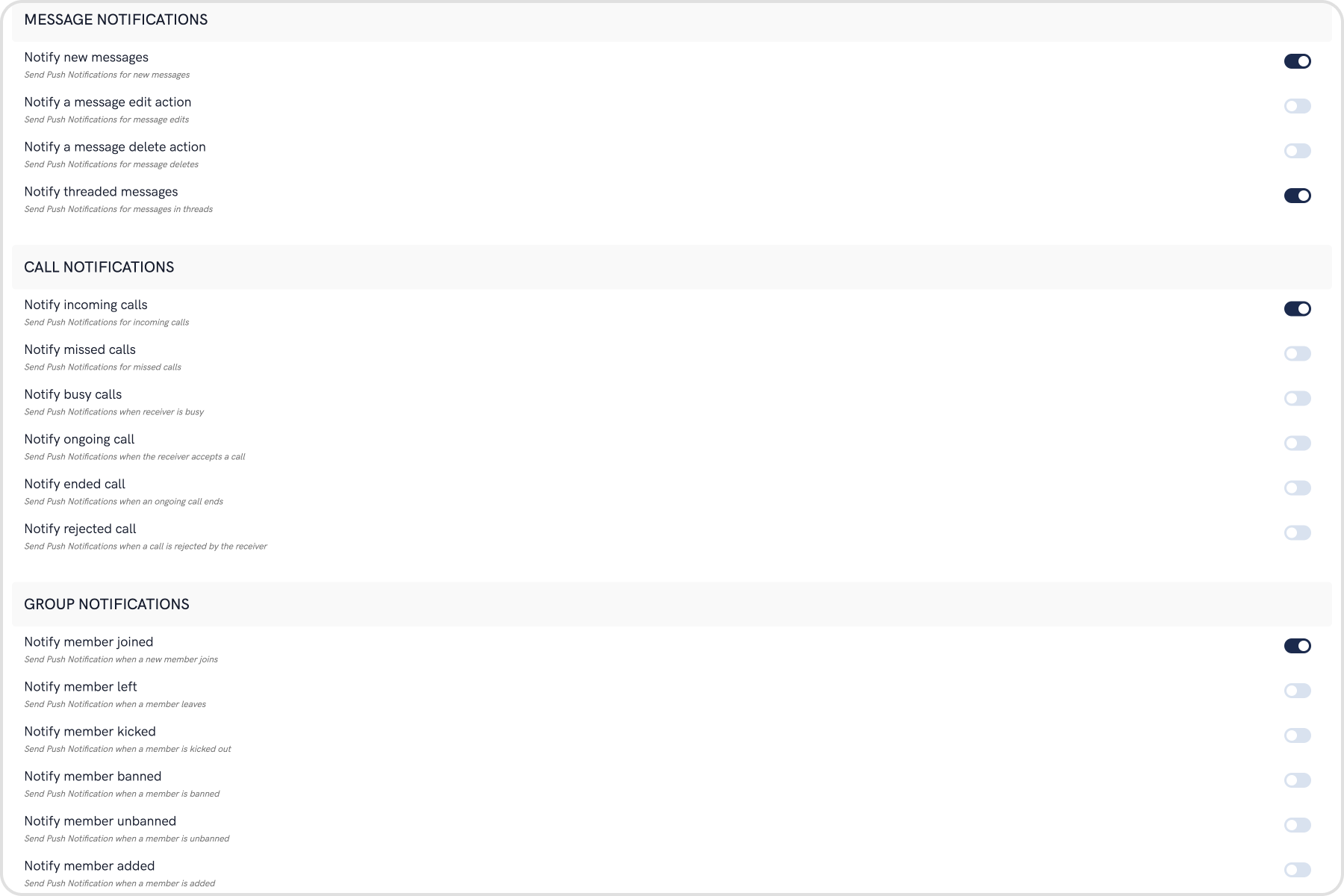
Notification Triggers
Select the triggers for sending Push Notifications. These triggers can be classified into 3 main categories:
Message Notifications
Call Notifications
Group Notifications
These are pretty self-explanatory and you can toggle them as per your requirement.
To obtain a signing certificate required to sign apps for installation on iOS devices, you should first create a certificate signing request (CSR) file through Keychain Access on your Mac.
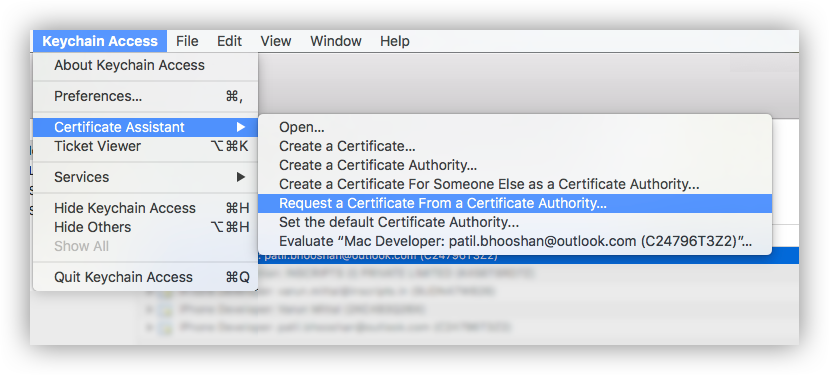
Open the Keychain Access from the utility folder, go to Keychain Access > Certificate Assistant > Request a Certificate From a Certificate Authority, and then click.
The Certificate Information dialog box appears. Enter the email address that you use in your Apple Developer account, and enter a common name for your private key. Don’t enter CA email address, choose Saved to disk, and then click the Continue button.
Specify the name of your CSR to save and choose the location to save the file on your local disk. Then your CSR file is created, which contains a public/private key pair.
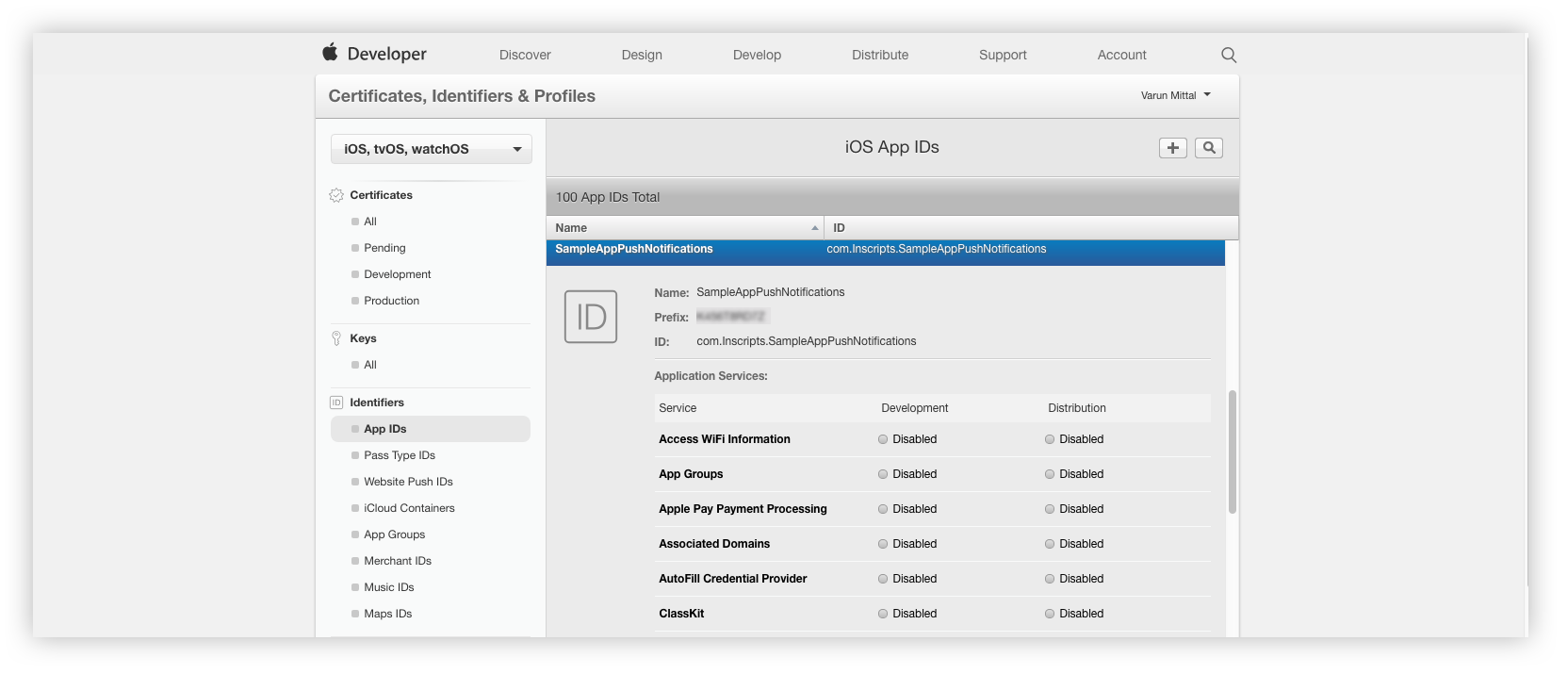
Go to Certificates, Identifiers & Profiles. In the Identifiers > App IDs and select the Push Notifications service under Application Services
Click the Edit button.
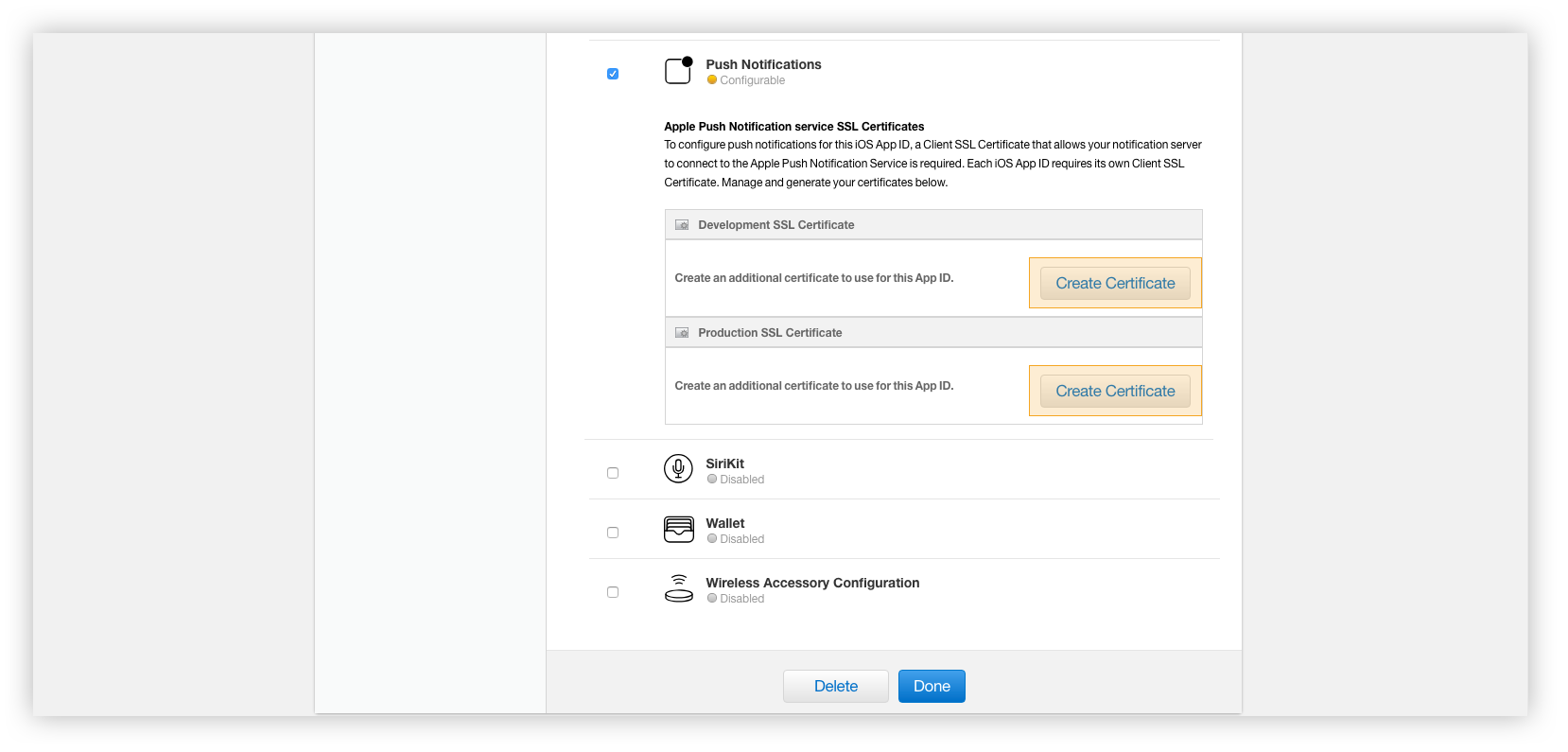
Under the Push Notifications service, choose which SSL certificate to create either Development or Production.
In the Generate your certificate pane that appears after the selection, under Upload CSR file., upload the CSR file you created through the Choose File… button. To complete the process, choose Continue. When the certificate is ready, choose Download to save it to your Mac.
In order to install the downloaded certificate to the KeyChain Access on your Mac, double-click it. You can find the certificate in the KeyChain Access > login > Certificates.
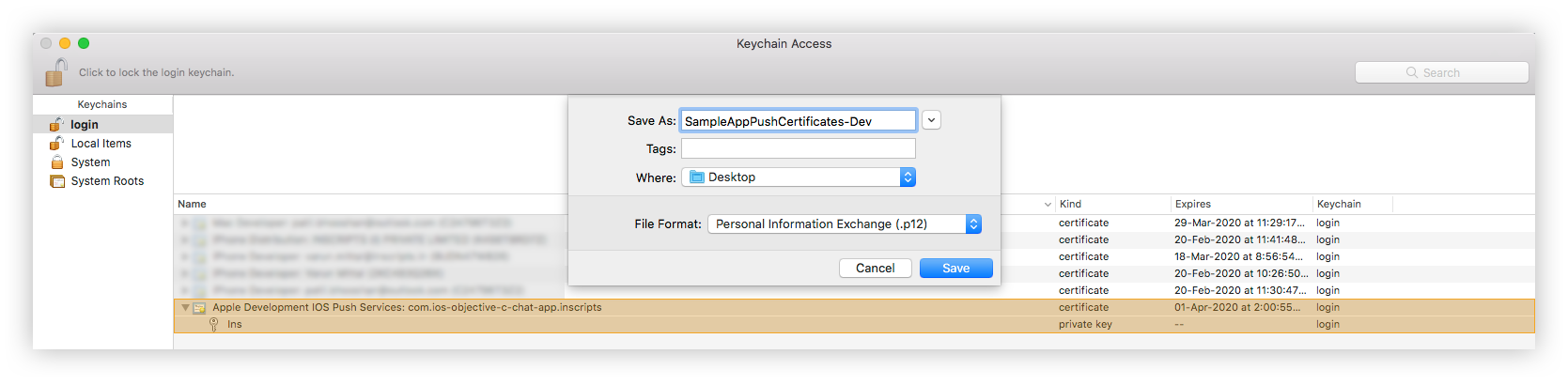
Type a name for the .p12 file and save it to your Mac.
Browse to the location where you saved your key, select it, and click Open. Add the key ID for the key (available in Certificates, Identifiers & Profiles in the Apple Developer Member Center) and export it.
To receive and display notifications for CustomMessage, the developer needs to set metadata while sending the CustomMessage value as follows:
Swift
Objective C
var receiverID = "cometchat-uid-1";var message = [ "someRandomKey": "someRandomData"];var customMessage = CustomMessage(receiverUid: receiverID, receiverType: ReceiverTypeUser, customData: message);// to display custom notification banner add this , "pushNotification" key is not to modify, although you can modify banner text as shown beow //var customNotificationDisplayText = [ "pushNotification": "notification_banner_text_here";];// set it as metadata of `Custom message`customMessage.metaData = customNotificationDisplayText;CometChat.sendCustomMessage(withMessage: customMessage, onSuccess: { sentMessage in print("sentMessage \\(sentMessage.stringValue)");}, onError: { error in if let error = error?.errorDescription() { print("error sending custom message \\(error)"); }});
Convert Push Notification payload to Message object
CometChat SDK provides a method CometChat.CometChatHelper.processMessage() which will take the JSON received in The push notification as input, and return the corresponding TextMessage, MediaMessage,CustomMessage or Call object in return. Once the message object is received, you can use the entity as per your requirements.This code needs to be added to the willPresent notification method of the UNUserNotificationCenterDelegate delegate.
Swift
func userNotificationCenter(_ center: UNUserNotificationCenter, willPresent notification: UNNotification, withCompletionHandler completionHandler: @escaping (UNNotificationPresentationOptions) -> Void) { if let userInfo = notification.request.content.userInfo as? [String : Any], let messageObject = userInfo["message"], let str = messageObject as? String, let dict = str.stringTodictionary() { if let baseMessage = CometChat.processMessage(dict).0 { switch baseMessage.messageCategory { case .message: if let message = baseMessage as? BaseMessage { switch message.messageType { case .text: print("text Messagge is: \\((message as?TextMessage)?.stringValue())") case .image: print("image Messagge is: \\((message as? MediaMessage)?.stringValue())") case .video: print("video Messagge is: \\((message as? MediaMessage)?.stringValue())") case .audio: print("audio Messagge is: \\((message as? MediaMessage)?.stringValue())") case .file: print("file Messagge is: \\((message as? MediaMessage)?.stringValue())") case .custom: print("custom Messagge is: \\((message as? MediaMessage)?.stringValue())") case .groupMember: break @unknown default:break} } case .action: break case .call: if let call = baseMessage as? Call { print("call is: \\(call.stringValue())") } case .custom: if let customMessage = baseMessage as? CustomMessage { print("customMessage is: \\(customMessage.stringValue())") } @unknown default: break } } } completionHandler([.alert, .badge, .sound]) }extension String { func stringTodictionary() -> [String:Any]? { var dictonary:[String:Any]? if let data = self.data(using: .utf8) { do { dictonary = try JSONSerialization.jsonObject(with: data, options: []) as? [String : Any] if let myDictionary = dictonary { return myDictionary; } } catch let error as NSError { print(error) } } return dictonary; }}