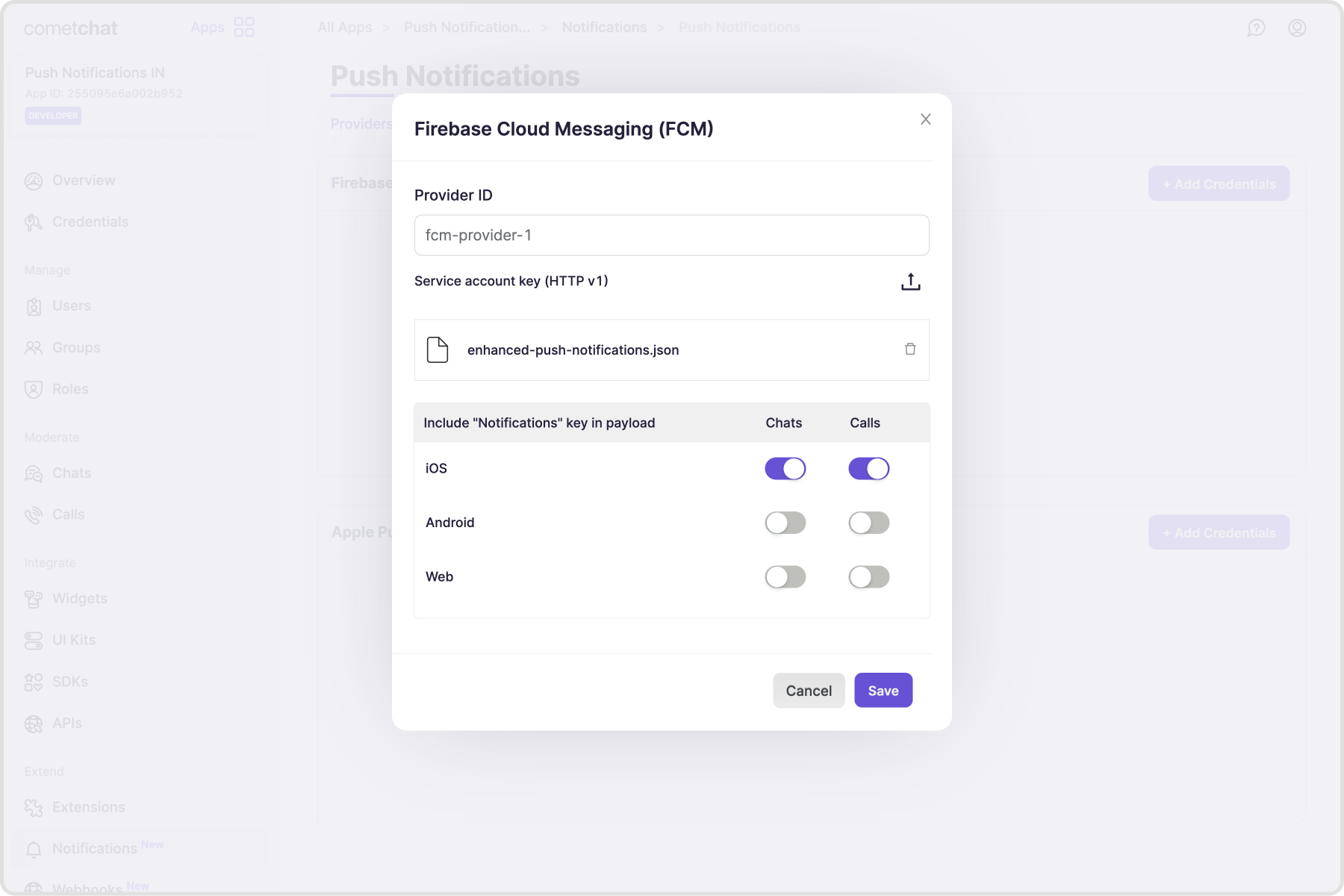
Generate a service account key for your Firebase application by navigating to the “Service accounts” section within the “Project settings” of the Firebase Cloud Messaging Dashboard. Generate new private key and download the JSON file. This will be required in the next steps.
In the dialogue that appears, provide a unique, memorable identifier for your provider.
Upload the service account JSON file you previously acquired.
Specify whether the push payload should include the “notification” key. Additional information on this configuration is available in FCM’s documentation - About FCM messages.
Similarly, you can add multiple FCM Credentials in case you have multiple FCM projects for your apps.
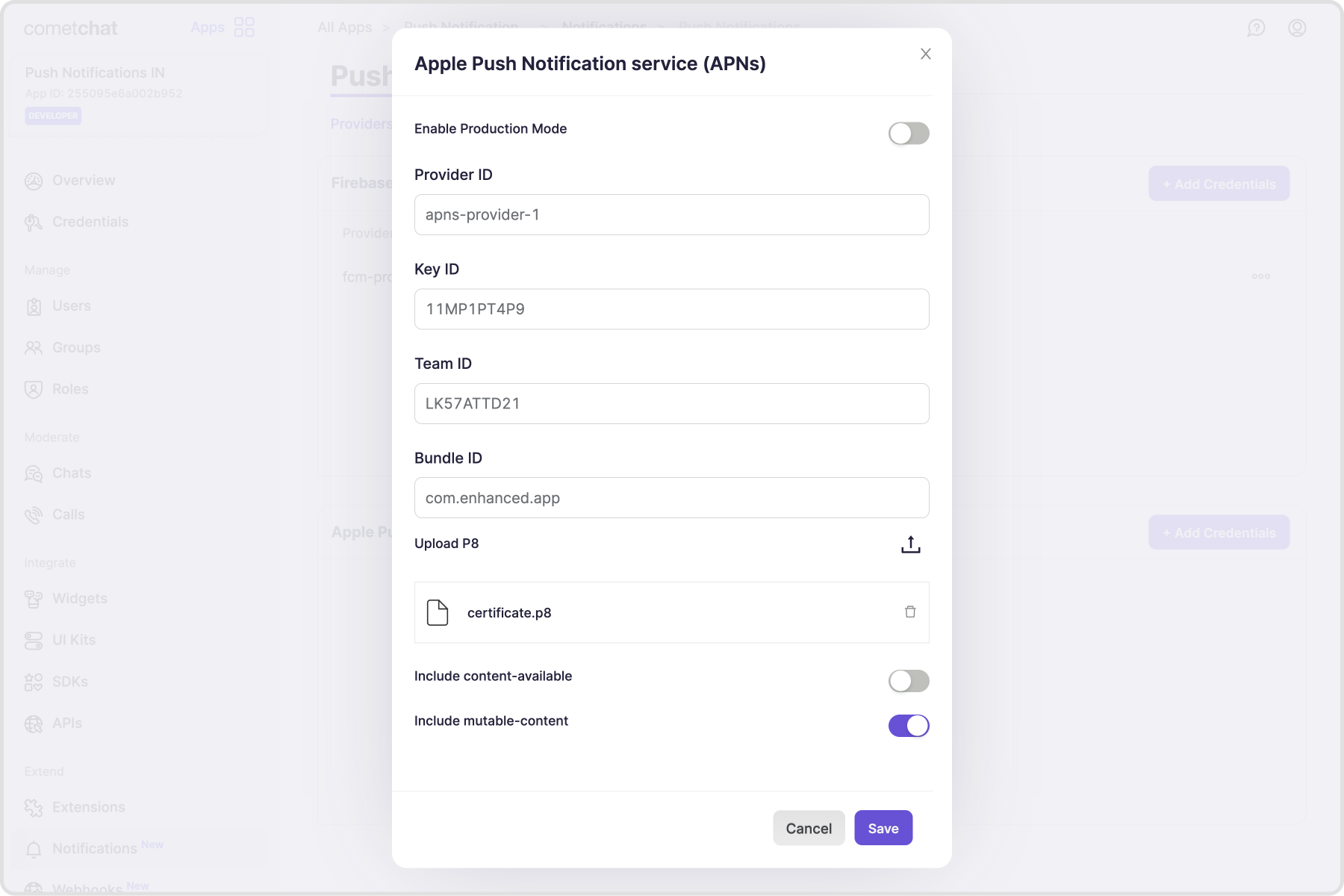
Enable the toggle if your app is in the Production. For apps under development, the toggle has to be disabled.
In the dialogue that appears, provide a unique, memorable identifier for your provider.
Store the Key ID, Team ID, Bundle ID for your app.
Upload the .p8 file
Enable “Include content-available” if you want to receive background notifications. However, this is not recommended as the background notifications are throttled. Additional information is available in Apple’s documentation - Pushing background updates to your App
Enable “Include mutable-content” if you want to modify the notification before it is displayed to the user. Additional information is available in Apple’s documentation - Modifying content on newly delivered notifications
Similarly, you can add multiple APNS Credentials in case you have multiple apps with different Bundle IDs.
Custom providers allow you to make use of providers apart from FCM and APNs. This is implemented using webhook URL which gets all the required details that can be used to trigger Push notifications.
Your webhook endpoint must be accessible over HTTPS. This is essential to ensure the security and integrity of data transmission.
This URL should be publicly accessible from the internet.
Ensure that your endpoint supports the HTTP POST method. Event payloads will be delivered via HTTP POST requests in JSON format.
Configure your endpoint to respond immediately to the CometChat server with a 200 OK response. The response should be sent within 2 seconds of receiving the request.
For security, it is recommended to set up Basic Authentication that is usually used for server-to-server calls. This requires you to configure a username and password. Whenever your webhook URL is triggered, the HTTP Header will contain:
Authorization: Basic <Base64-encoded-credentials>
Your frontend application should implement the logic to get the push token and register it to your backend when the user logs in and unregister the push token when the user logs out.
To enable multi-device logins, you can map the push tokens to the user’s auth tokens. Where each new login makes use of a new auth token.
The Custom provider is triggered once for an event in one-on-one conversation. In case of notifying the members of a group, the custom provider is triggered once for each user present in that group.For example, if there are 100 members in the group, your webhook will receive 100 HTTP requests. Once for each member of the group.Below are the sample payloads for different events:
Chat notification payload
Call notification payload
Reaction notification payload
Group action notification payload
{ "trigger": "push-notification-payload-generated", "data": { "to": { "uid": "cometchat-uid-2" }, "notificationDetails": { // Notification details "title": "Andrew Joseph", // The title of the notification to be displayed "body": "Hello!", // The body of the notification to be displayed // Sender's details "sender": "cometchat-uid-1", // UID of the user who sent the message. "senderName": "Andrew Joseph", // Name of the user who sent the message. "senderAvatar": "https://assets.cometchat.io/sampleapp/v2/users/cometchat-uid-1.webp", // Avatar URL of the user. // Receiver's details "receiver": "cometchat-uid-2", // UID or GUID of the receiver. "receiverName": "George Alan", // Name of the user or group. "receiverAvatar": "https://assets.cometchat.io/sampleapp/v2/users/cometchat-uid-2.webp", // Avatar URL of the receiver. "receiverType": "user", // Values can be "user" or "group" // Message details "tag": "123", // The ID of the message that can be used as the ID of the notification to be displayed. "conversationId": "cometchat-uid-1_user_cometchat-uid-2", // The ID of the conversation that the message belongs to. "type": "chat", "sentAt": "1741847453000", "message": {CometChat Message Object}, // Present if "Include message object" is enabled. The message object is present for new messages or in case a message was edited or deleted. "custom": {Custom JSON} // Custom JSON object is added in case it is configured in the preferences. } }, "appId": "app123", "region": "us/eu/in", "webhook": "custom"}
{ "trigger": "push-notification-payload-generated", "data": { "to": { "uid": "cometchat-uid-2" }, "notificationDetails": { // Notification details "title": "Caller", // The title of the notification to be displayed "body": "AUDIO CALL", // "AUDIO CALL" or "VIDEO CALL" // Sender's details "sender": "cometchat-uid-1", // UID of the user who sent the message. "senderName": "Andrew Joseph", // Name of the user who sent the message. "senderAvatar": "https://assets.cometchat.io/sampleapp/v2/users/cometchat-uid-1.webp", // Avatar URL of the user. // Receiver's details "receiver": "cometchat-uid-2", // UID or GUID of the receiver. "receiverName": "George Alan", // Name of the user or group. "receiverAvatar": "https://assets.cometchat.io/sampleapp/v2/users/cometchat-uid-2.webp", // Avatar URL of the receiver. "receiverType": "user", // "user" or "group" // Message details "tag": "123", // The ID of the message that can be used as the ID of the notification to be displayed. "conversationId": "cometchat-uid-1_user_cometchat-uid-2", // The ID of the conversation that the call belongs to. "type": "call", // Call details "callAction": "initiated", // "initiated" or "cancelled" or "unanswered" or "ongoing" or "rejected" or "ended" or "busy" "sessionId": "v1.123.aik2", // The unique sessionId of the call that can be used as an identifier in CallKit or ConnectionService. "callType": "audio", // "audio" or "video" "sentAt": "1741847453000", "custom": {Custom JSON} // Custom JSON object is added in case it is configured in the preferences. } }, "appId": "app123", "region": "us/eu/in", "webhook": "custom"}
{ "trigger": "push-notification-payload-generated", "data": { "to": { "uid": "cometchat-uid-2" }, "notificationDetails": { // Notification details "title": "Andrew Joseph", "body": "Reacted to your message: 😎", // Sender's details "sender": "cometchat-uid-1", "senderName": "Andrew Joseph", "senderAvatar": "https://assets.cometchat.io/sampleapp/v2/users/cometchat-uid-1.webp", // Receiver's details "receiver": "cometchat-uid-1", "receiverName": "Andrew Joseph", "receiverAvatar": "https://assets.cometchat.io/sampleapp/v2/users/cometchat-uid-1.webp", "receiverType": "user", // Message details "tag": "58", "conversationId": "cometchat-uid-1_user_cometchat-uid-2", "type": "chat", "sentAt": "1741847453000", "custom": {Custom JSON} // Custom JSON object is added in case it is configured in the preferences. } }, "appId": "app123", "region": "us", "webhook": "custom"}
{ "trigger": "push-notification-payload-generated", "data": { "to": { "uid": "g-messages-none" }, "notificationDetails": { // Notification details "title": "Hiking group", "body": "Andrew Joseph has left", // Similarly for joined, kicked, banned, unbanned, added events // Sender details "sender": "cometchat-uid-1", "senderName": "Andrew Joseph", "senderAvatar": "https://assets.cometchat.io/sampleapp/v2/users/cometchat-uid-1.webp", // Receiver details "receiver": "cometchat-guid-1", "receiverName": "Hiking group", "receiverType": "group", // Message details "tag": "cometchat-guid-1", "conversationId": "group_cometchat-guid-1", "type": "chat", "sentAt": "1741847453000", "custom": {Custom JSON} // Custom JSON object is added in case it is configured in the preferences. } }, "appId": "app123", "region": "us", "webhook": "custom"}
Push tokens, obtained from the APIs or SDKs provided by the platforms or frameworks in use, must be registered on behalf of the logged in user with the CometChat backend. For this purpose, CometChat SDKs v4+ offer the following functions:Push token registration should be completed in two scenarios:
Following the success of CometChat.login() & receiving user’s permission to receiver Push notifications.
When a refresh token becomes available.
To register a token, use the CometChatNotifications.registerPushToken() method from the SDK. This method accepts the following parameters.
• Any one of the FCM provider identifiers in case of an FCM token. • Any one of the APNS provider identifiers in case of Device or VoIP tokens.
JavaScript
Android
iOS
Flutter
// This is applicable for web, React native, Ionic cordova// CometChat.init() success.// CometChat.login() success.// User has granted permission to display push notifications.// For webCometChatNotifications.registerPushToken( pushToken, CometChatNotifications.PushPlatforms.FCM_WEB, "fcm-provider-2") .then((payload) => { console.log("Token registration successful"); }) .catch((err) => { console.log("Token registration failed:", err); });// For React Native AndroidCometChatNotifications.registerPushToken( pushToken, CometChatNotifications.PushPlatforms.FCM_REACT_NATIVE_ANDROID, "fcm-provider-2") .then((payload) => { console.log("Token registration successful"); }) .catch((err) => { console.log("Token registration failed:", err); });// For React Native iOSCometChatNotifications.registerPushToken( pushToken, CometChatNotifications.PushPlatforms.FCM_REACT_NATIVE_iOS, "fcm-provider-2") .then((payload) => { console.log("Token registration successful"); }) .catch((err) => { console.log("Token registration failed:", err); });// For Ionic cordova AndroidCometChatNotifications.registerPushToken( pushToken, CometChatNotifications.PushPlatforms.FCM_IONIC_CORDOVA_ANDROID, "fcm-provider-2") .then((payload) => { console.log("Token registration successful"); }) .catch((err) => { console.log("Token registration failed:", err); });// For Ionic cordova iOSCometChatNotifications.registerPushToken( pushToken, CometChatNotifications.PushPlatforms.FCM_IONIC_CORDOVA_iOS, "fcm-provider-2") .then((payload) => { console.log("Token registration successful"); }) .catch((err) => { console.log("Token registration failed:", err); });// Similary, use this method to register refresh token.
// CometChat.init() success.// CometChat.login() success.// User has granted permission to display push notifications.CometChatNotifications.registerPushToken(pushToken, PushPlatforms.FCM_ANDROID, "fcm-provider-2", new CometChat.CallbackListener<String>() { @Override public void onSuccess(String s) { Log.e(TAG, "onSuccess: CometChat Notification Registered : "+s ); listener.onSuccess(s); } @Override public void onError(CometChatException e) { Log.e(TAG, "onError: Notification Registration Failed : "+e.getMessage()); listener.onError(e); }});// Similary, use this method to register refresh token.
// CometChat.init() success.// CometChat.login() success.// User has granted permission to display push notifications.CometChatNotifications.registerPushToken(pushToken: pushToken, platform: CometChatNotifications.PushPlatforms.FCM_iOS, providerId: "apns-provider-2", onSuccess: { (success) in print("registerPushToken: \(success)")}) { (error) in print("registerPushToken: \(error.errorCode) \(error.errorDescription)")}// Similary, use this method to register refresh token.
// CometChat.init() success.// CometChat.login() success.// User has granted permission to display push notifications.// For Android (FCM)CometChatNotifications.registerPushToken( PushPlatforms.FCM_FLUTTER_ANDROID, providerId: "fcm-provider-1", fcmToken: token, onSuccess: (response) { debugPrint("registerPushToken:success ${response.toString()}"); }, onError: (e) { debugPrint("registerPushToken:error ${e.toString()}"); },);// For iOS (FCM)CometChatNotifications.registerPushToken( PushPlatforms.FCM_FLUTTER_iOS, providerId: "fcm-provider-1", fcmToken: token, onSuccess: (response) { debugPrint("registerPushToken:success ${response.toString()}"); }, onError: (e) { debugPrint("registerPushToken:error ${e.toString()}"); },);// For ios (APNS Device token)CometChatNotifications.registerPushToken( PushPlatforms.APNS_FLUTTER_DEVICE, providerId: "apns-provider-1", deviceToken: token, onSuccess: (response) { debugPrint("registerPushToken:success ${response.toString()}"); }, onError: (e) { debugPrint("registerPushToken:error ${e.toString()}"); },);// For ios (APNS VoIP token)CometChatNotifications.registerPushToken( PushPlatforms.APNS_FLUTTER_VOIP, providerId: "apns-provider-1", voipToken: token, onSuccess: (response) { debugPrint("registerPushToken:success ${response.toString()}"); }, onError: (e) { debugPrint("registerPushToken:error ${e.toString()}"); },);// Similary, use this method to register refresh token.
Typically, push token unregistration should occur prior to user logout, using the CometChat.logout() method.For token unregistration, use the CometChatNotifications.unregisterPushToken() method provided by the SDKs.
JavaScript
Android
iOS
Flutter
// This is applicable for web, React native, Ionic cordovaawait CometChatNotifications.unregisterPushToken();// Followed by CometChat.logout();
CometChatNotifications.unregisterPushToken(new CometChat.CallbackListener<String>() { @Override public void onSuccess(String s) { // Success callback } @Override public void onError(CometChatException e) { // Error callback }});// Followed by CometChat.logout();
CometChatNotifications.unregisterPushToken { success in print("unregisterPushToken: \(success)")} onError: { error in print("unregisterPushToken: \(error.errorCode) \(error.errorDescription)")}// Followed by CometChat.logout();
Push notifications should be managed primarily when the app is in the background or in a terminated state.For web and mobile applications, the Firebase Cloud Messaging (FCM) SDK offers handler functions to receive Push Notifications.For iOS applications, the FCM SDK can be used as described previously, or alternatively, PushKit can be implemented for better integration and management of chat and call (VoIP) notifications.The push payload delivered to the user’s device includes the following information, which can be customized to suit the desired notification style:
Details available in the payload
{ // Notification details "title": "Andrew Joseph", // The title of the notification to be displayed "body": "Hello!", // The body of the notification to be displayed // Sender's details "sender": "cometchat-uid-1", // UID of the user who sent the said message. "senderName": "Andrew Joseph", // Name of the user who sent the said message. "senderAvatar": "https://assets.cometchat.io/sampleapp/v2/users/cometchat-uid-1.webp", // Avatar URL of the user. // Receiver's details "receiver": "cometchat-uid-2", // UID or GUID of the receiver. "receiverName": "George Alan", // Name of the user or group. "receiverAvatar": "https://assets.cometchat.io/sampleapp/v2/users/cometchat-uid-2.webp", // Avatar URL of the receiver. "receiverType": "user", // Values can be "user" or "group" // Message details "tag": "123", // The ID of the said message that can be used as the ID of the notification to be displayed. "conversationId": "cometchat-uid-1_user_cometchat-uid-2", // The ID of the conversation that the said message belongs to. "type": "chat", // Values can be "call" or "chat". If this is "call", the below details will be available. // Call details "callAction": "initiated", // Values can be "initiated" or "cancelled" or "unanswered" or "ongoing" or "rejected" or "ended" or "busy" "sessionId": "v1.123.aik2", // The unique sessionId of the said call that can be used as unique identifier in CallKit or ConnectionService. "callType": "audio", // Values can be "audio" or "video" "sentAt": "1741847453000", "message": {CometChat Message Object}, // Present if "Include message object" is enabled. The message object is present for new messages or in case a message was edited or deleted. "custom": {Custom JSON} // Custom JSON object is added in case it is configured in the preferences.}