Documentation Index
Fetch the complete documentation index at: https://cometchat-22654f5b-release-ios-chat-uikit-v5-1-2.mintlify.app/llms.txt
Use this file to discover all available pages before exploring further.
Overview
MessageComposer is a Component that enables users to write and send a variety of messages, including text, image, video, and custom messages.
Features such as Live Reaction, Attachments, and Message Editing are also supported by it.
MessageComposer is comprised of the following Base Components:
| Base Components | Description |
|---|
| MessageInput | This provides a basic layout for the contents of this component, such as the TextField and buttons |
| ActionSheet | The ActionSheet component presents a list of options in either a list or grid mode, depending on the user’s preference |
Usage
Integration
The following code snippet illustrates how you can directly incorporate the MessageComposer component into your app.
MessageComposerDemo.tsx
App.tsx
import React from "react";
import { CometChat } from "@cometchat/chat-sdk-javascript";
import { CometChatMessageComposer } from "@cometchat/chat-uikit-react";

  export function MessageComposerDemo() {
    const [chatUser, setChatUser] = React.useState<CometChat.User>()
    React.useEffect(() => {
        CometChat.getUser("uid").then((user) => {
            setChatUser(user);
        })
    }, [])

    return chatUser ? (
      <div>
        <CometChatMessageComposer
          user={chatUser}
        />
      </div>
    ) : null;
  }
import { MessageComposerDemo } from "./MessageComposerDemo";

export default function App() {
  return (
    <div className='App'>
      <div>
        <MessageComposerDemo />
      </div>
    </div>
  );
}
Actions
Actions dictate how a component functions. They are divided into two types: Predefined and User-defined. You can override either type, allowing you to tailor the behavior of the component to fit your specific needs.
1. OnSendButtonClick
The OnSendButtonClick event gets activated when the send message button is clicked. It has a predefined function of sending messages entered in the composer EditText. However, you can overide this action with the following code snippet.
import React from "react";
import { CometChat } from "@cometchat/chat-sdk-javascript";
import { CometChatMessageComposer } from "@cometchat/chat-uikit-react";

  export function MessageComposerDemo() {
    const [chatUser, setChatUser] = React.useState<CometChat.User>()
    React.useEffect(() => {
        CometChat.getUser("uid").then((user) => {
            setChatUser(user);
        })
    }, [])

    function getOnSendButtonClick(message: CometChat.BaseMessage): void {
        console.log("your custom on send buttonclick action");
    }
    return chatUser ? (
      <div>
        <CometChatMessageComposer
          onSendButtonClick={getOnSendButtonClick}
        />
      </div>
    ) : null;
  }
2. onError
This action doesn’t change the behavior of the component but rather listens for any errors that occur in the MessageList component.
import React from "react";
import { CometChat } from "@cometchat/chat-sdk-javascript";
import { CometChatMessageComposer } from "@cometchat/chat-uikit-react";

  export function MessageComposerDemo() {
    const [chatUser, setChatUser] = React.useState<CometChat.User>()
    React.useEffect(() => {
        CometChat.getUser("uid").then((user) => {
            setChatUser(user);
        })
    }, [])
    function handleError(error: CometChat.CometChatException) {
        throw new Error("your custom error action");
    }
    return chatUser ? (
      <div>
        <CometChatMessageComposer
          user={chatUser}
          onError={handleError}
        />
      </div>
    ) : null;
  }
Filters
MessageComposer component does not have any available filters.
Events
Events are emitted by a Component. By using event you can extend existing functionality. Being global events, they can be applied in Multiple Locations and are capable of being Added or Removed.
The list of events emitted by the Messages component is as follows.
| Event | Description |
|---|
| ccMessageEdited | Triggers whenever a loggedIn user edits any message from the list of messages .it will have three states such as: inProgress, success and error |
| ccMessageSent | Triggers whenever a loggedIn user sends any message, it will have three states such as: inProgress, success and error |
| ccLiveReaction | Triggers whenever a loggedIn clicks on live reaction |
CometChatMessageEvents Listener’s
import {CometChatMessageEvents} from "@cometchat/chat-uikit-react";

const ccMessageEdited = CometChatMessageEvents.ccMessageEdited.subscribe(
 () => {
        // Your Code
  }
);

const ccMessageSent = CometChatMessageEvents.ccMessageSent.subscribe(
  () => {
        // Your Code
  }
);

const ccLiveReaction = CometChatMessageEvents.ccLiveReaction.subscribe(
  () => {
        // Your Code
  }
);
Removing CometChatMessageEvents Listener’s
ccMessageEdited?.unsubscribe();
ccMessageSent?.unsubscribe();
Customization
To fit your app’s design requirements, you can customize the appearance of the MessageComposer component. We provide exposed methods that allow you to modify the experience and behavior according to your specific needs.
Style
Using Style you can customize the look and feel of the component in your app, These parameters typically control elements such as the color, size, shape, and fonts used within the component.
1. MessageComposer Style
To modify the styling, you can apply the MessageComposerStyle to the MessageComposer Component using the messageComposerStyle property.
import React from "react";
import { CometChat } from "@cometchat/chat-sdk-javascript";
import { CometChatMessageComposer, MessageComposerStyle } from "@cometchat/chat-uikit-react";

  export function MessageComposerDemo() {
    const [chatUser, setChatUser] = React.useState<CometChat.User>()
    React.useEffect(() => {
        CometChat.getUser("uid").then((user) => {
            setChatUser(user);
        })
    }, [])
    const messageComposerStyle = new MessageComposerStyle({
        AIIconTint:"#ec03fc",
        attachIcontint:"#ec03fc",
        background:"#fffcff",
        border:"2px solid #b30fff",
        borderRadius:"20px",
        inputBackground:"#e2d5e8",
        textColor:"#ff299b",
        sendIconTint:"#ff0088",
        liveReactionIconTint:"#ff0088"
    })
    return chatUser ? (
      <div>
        <CometChatMessageComposer
          user={chatUser}
          messageComposerStyle={messageComposerStyle}
        />
      </div>
    ) : null;
  }
| Property | Description | Code |
|---|
| border | Used to set border | border?: string, |
| borderRadius | Used to set border radius | borderRadius?: string; |
| background | Used to set background colour | background?: string; |
| height | Used to set height | height?: string; |
| width | Used to set width | width?: string; |
| inputBackground | Used to set input background color | inputBackground?: string; |
| inputBorder | used to set input border | inputBorder?: string; |
| inputBorderRadius | used to set input border radius | inputBorderRadius?: string; |
| textFont | Used to set input text font | textFont?: string; |
| textColor | used to set input text color | textColor?: string; |
| placeHolderTextColor | Used to set placeholder text color | placeHolderTextColor?: string; |
| placeHolderTextFont | Used to set placeholder text font | placeHolderTextFont?: string; |
| attachIcontint | Used to set attachment icon tint | attachIcontint?: string; |
| sendIconTint | Used to set send button icon tint | sendIconTint?: string; |
| dividerTint | Used to set separator color | dividerTint?: string; |
| liveReactionIconTint | Used to set live reaction icon color | liveReactionIconTint?: string; |
| voiceRecordingIconTint | used to set voice recording icon color | voiceRecordingIconTint?: string; |
| emojiIconTint | used to set emoji icon color | emojiIconTint?: string; |
| AIIconTint | used to set AI icon color | AIIconTint?: string; |
| emojiKeyboardTextFont | used to set emoji keyboard text font | emojiKeyboardTextFont?: string; |
| previewTitleFont | used to set preview title font | previewTitleFont?: string; |
| previewTitleColor | used to set preview title color | previewTitleColor?: string; |
| previewSubtitleFont | used to set preview subtitle font | previewSubtitleFont?: string; |
| previewSubtitleColor | used to set preview subtitle color | previewSubtitleColor?: string; |
| closePreviewTint | used to set close preview color | closePreviewTint?: string; |
| maxInputHeight | used to set max input height | maxInputHeight?: string; |
2. MediaRecorder Style
To customize the styles of the MediaRecorder component within the MessageComposer Component, use the mediaRecorderStyle property. For more details, please refer to MediaRecorder styles.
import React from "react";
import { CometChat } from "@cometchat/chat-sdk-javascript";
import { CometChatMessageComposer, MediaRecorderStyle } from "@cometchat/chat-uikit-react";

  export function MessageComposerDemo() {
    const [chatUser, setChatUser] = React.useState<CometChat.User>()
    React.useEffect(() => {
        CometChat.getUser("uid").then((user) => {
            setChatUser(user);
        })
    }, [])
    const mediaRecorderStyle = new MediaRecorderStyle({
        background:"#f2f5fa",
        border:"2px solid #be0be6",
        closeIconTint:"#830be6",
        submitIconTint:"#c2a3ff",
        startIconTint:"#a313f0"
    })
    return chatUser ? (
      <div>
        <CometChatMessageComposer
          user={chatUser}
          mediaRecorderStyle={mediaRecorderStyle}
        />
      </div>
    ) : null;
  }
3. MentionsWarning Style
To customize the styles of the MentionsWarning within the MessageComposer Component, use the mentionsWarningStyle property.
import React from "react";
import { CometChat } from "@cometchat/chat-sdk-javascript";
import { CometChatMessageComposer } from "@cometchat/chat-uikit-react";

  export function MessageComposerDemo() {
    const [chatUser, setChatUser] = React.useState<CometChat.User>()
    React.useEffect(() => {
        CometChat.getUser("uid").then((user) => {
            setChatUser(user);
        })
    }, [])
    const mentionsWarningStyle: any = ({
    backgroundColor:'red',
    height:'50px',
    width:'200px'
    });
    return chatUser ? (
      <div>
        <CometChatMessageComposer
          user={chatUser}
          mentionsWarningStyle={mentionsWarningStyle}
        />
      </div>
    ) : null;
  }
Functionality
These are a set of small functional customizations that allow you to fine-tune the overall experience of the component. With these, you can change text, set custom icons, and toggle the visibility of UI elements.
import React from "react";
import { CometChat } from "@cometchat/chat-sdk-javascript";
import { CometChatMessageComposer } from "@cometchat/chat-uikit-react";

  export function MessageComposerDemo() {
    const [chatUser, setChatUser] = React.useState<CometChat.User>()
    React.useEffect(() => {
        CometChat.getUser("uid").then((user) => {
            setChatUser(user);
        })
    }, [])
    return chatUser ? (
      <div>
        <CometChatMessageComposer
          user={chatUser}
          hideLiveReaction={true}
          disableTypingEvents={true}
        />
      </div>
    ) : null;
  }
| Property | Description | Code |
|---|
| User report | Used to pass user object of which header specific details will be show | user={chatUser} |
| Group report | Used to pass group object of which header specific details will be shown | group={chatGroup} |
| placeHolderText | Used to set composer’s placeholder text | placeHolderText="your custom placeholder text" |
| mentionsWarningText | Text to be displayed when max limit reaches for valid mentions | mentionsWarningText="Your Custom Mentions warning Text" |
| disableTypingEvents | Used to disable/enable typing events , default false | disableTypingEvents={true} |
| disableSoundForMessages | Used to toggle sound for outgoing messages | disableSoundForMessages={true} |
| sendButtonIconURL | Used to set send button icon | sendButtonIconURL="your custom isend button icon url" |
| text | Used to set predefined text | text="Your custom text" |
| voiceRecordingStartIconURL | Sets custom icon for voice recording start. | voiceRecordingStartIconURL="your custom voice recording start icon" |
| voiceRecordingStopIconURL | Sets custom icon for voice recording stop. | voiceRecordingStopIconURL="your custom voice recording stop icon" |
| voiceRecordingCloseIconURL | Sets custom icon for voice recording close. | voiceRecordingCloseIconURL="your custom voice recording close icon" |
| voiceRecordingSubmitIconURL | Sets custom icon for voice recording submit | voiceRecordingSubmitIconURL="your custom voice recording submit icon" |
| auxiliaryButtonAlignment | controls position of auxiliary button view , can be left or right . default right | auxiliaryButtonAlignment={AuxiliaryButtonAlignment.left} |
| attachmentIconURL | sets the icon to show in the attachment button | attachmentIconURL="your custom attachment icon url" |
| hideLiveReaction | used to toggle visibility for live reaction component | hideLiveReaction={true} |
| customSoundForMessage | Used to give custom sounds to outgoing messages | customSoundForMessage="your custom sound for messages" |
| LiveReactionIconURL | used to set custom live reaction icon. | LiveReactionIconURL="your custom live reaction icon" |
| AIIconURL | used to set custom AI icon. | AIIconURL="your custom AI icon" |
| emojiIconURL | used to set custom emoji icon. | emojiIconURL="your custom emoji icon" |
| hideLayoutMode | used to hide the layout mode. | hideLayoutMode={true} |
| hideVoiceRecording | used to hide the voice recording option. | hideVoiceRecording={true} |
| Disable Mentions | Sets whether mentions in text should be disabled. Processes the text formatters If there are text formatters available and the disableMentions flag is set to true, it removes any formatters that are instances of CometChatMentionsFormatter. | disableMentions={true} |
Advanced
For advanced-level customization, you can set custom views to the component. This lets you tailor each aspect of the component to fit your exact needs and application aesthetics. You can create and define your views, layouts, and UI elements and then incorporate those into the component.
AttachmentOptions
By using attachmentOptions, you can set a list of custom MessageComposerActions for the MessageComposer Component. This will override the existing list of MessageComposerActions.
Example
import React from "react";
import { CometChat } from "@cometchat/chat-sdk-javascript";
import { CometChatMessageComposer, CometChatMessageComposerAction } from "@cometchat/chat-uikit-react";

  export function MessageComposerDemo() {
    const [chatUser, setChatUser] = React.useState<CometChat.User>()
    React.useEffect(() => {
        CometChat.getUser("uid").then((user) => {
            setChatUser(user);
        })
    }, [])
    return chatUser ? (
      <div>
        <CometChatMessageComposer
          user={chatUser}
          attachmentOptions={(userOrGroup, composerId) => {
            const CustomAttachment = [
                new CometChatMessageComposerAction({
                    id: 'your custom id',
                    iconURL: 'your custom icon',
                    background: 'blue',
                    title: 'Your Custom Title',
                    iconTint: '#9000ff'
                })
            ];

            if(userOrGroup instanceof CometChat.User) {
              //push user specific custom attachment options
            } else if(userOrGroup instanceof CometChat.Group) {
              //push group specific custom attachment options
            }
            return CustomAttachment;
        }}
        />
      </div>
    ) : null;
  }
You can insert a custom view into the MessageComposer component to add additional functionality using the following method.
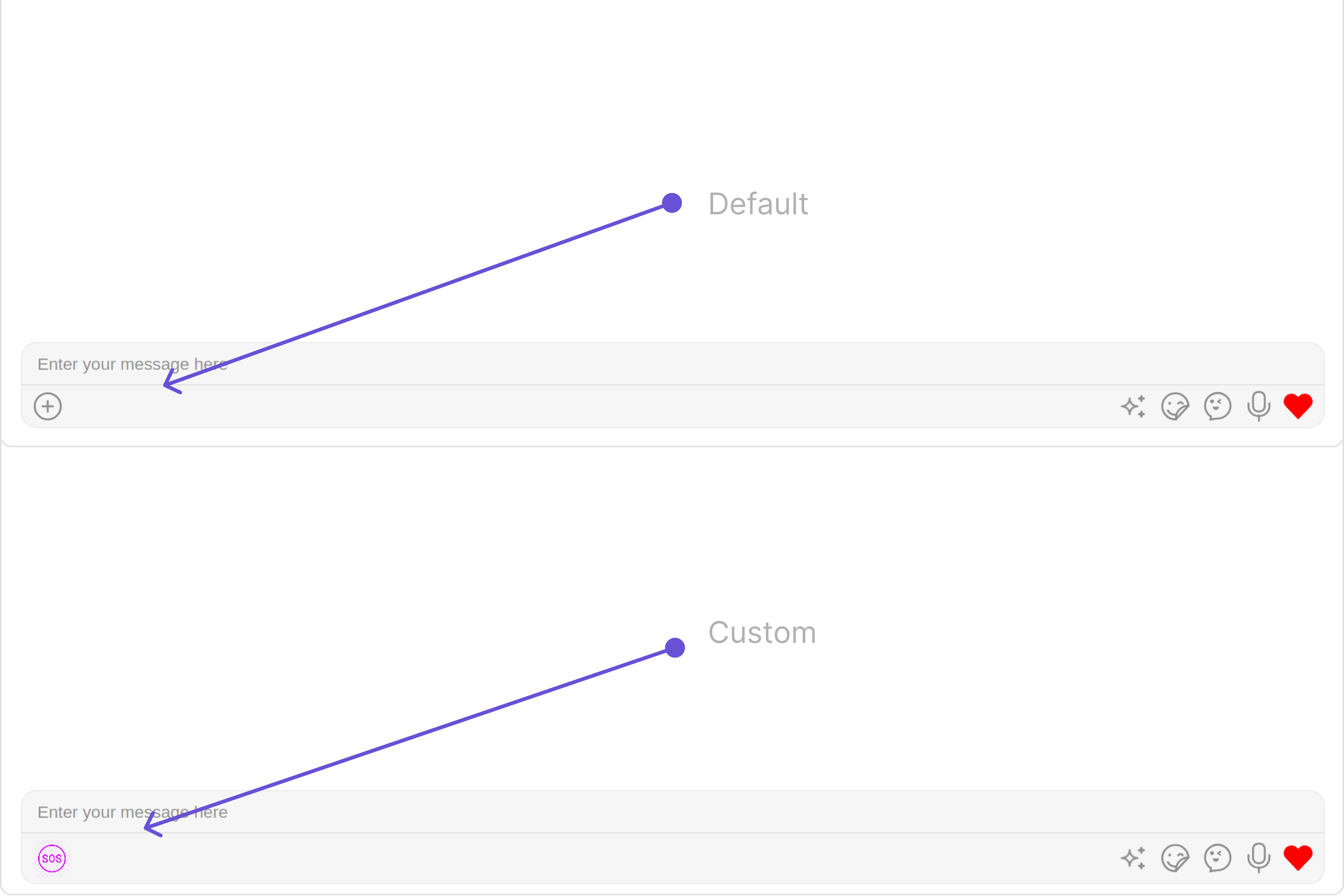
Please note that the MessageComposer Component utilizes the AuxiliaryButton to provide sticker functionality. Overriding the AuxiliaryButton will subsequently replace the sticker functionality.
In this example, we’ll be adding a custom SOS button.
Example
import React from "react";
import { CometChat } from "@cometchat/chat-sdk-javascript";
import { CometChatMessageComposer, IconStyle } from "@cometchat/chat-uikit-react";

  export function MessageComposerDemo() {
    const [chatUser, setChatUser] = React.useState<CometChat.User>()
    React.useEffect(() => {
        CometChat.getUser("uid").then((user) => {
            setChatUser(user);
        })
    }, [])
    const getAuxiliaryButtonView = (userOrGroup: CometChat.User | CometChat.Group, composerId: ComposerId): JSX.Element => {
        const iconStyle = new IconStyle({
            iconTint:"#d400ff",
            height:"30px",
            width:"30px"
        })
        return (
            <cometchat-icon name="custom name" URL="your custom icon url" iconStyle={JSON.stringify(iconStyle)} />
        );
    };

    return chatUser ? (
      <div>
        <CometChatMessageComposer
          user={chatUser}
          auxiliaryButtonView={getAuxiliaryButtonView}
        />
      </div>
    ) : null;
  }
You can add a custom view into the SecondaryButton component for additional functionality using the below method.
In this example, we’ll be adding a custom SOS button.
Example
import React from "react";
import { CometChat } from "@cometchat/chat-sdk-javascript";
import { CometChatMessageComposer, IconStyle } from "@cometchat/chat-uikit-react";

  export function MessageComposerDemo() {
    const [chatUser, setChatUser] = React.useState<CometChat.User>()
    React.useEffect(() => {
        CometChat.getUser("uid").then((user) => {
            setChatUser(user);
        })
    }, [])
    const getSecondaryButtonView = (userOrGroup: CometChat.User | CometChat.Group, composerId: ComposerId): JSX.Element => {
        const iconStyle = new IconStyle({
            iconTint:"#d400ff",
            height:"30px",
            width:"30px"
        })
        return (
            <cometchat-icon name="SOS" URL="your custom icon url" iconStyle={JSON.stringify(iconStyle)} />
        );
    };

    return chatUser ? (
      <div>
        <CometChatMessageComposer
          user={chatUser}
          secondaryButtonView={getSecondaryButtonView}
        />
      </div>
    ) : null;
  }
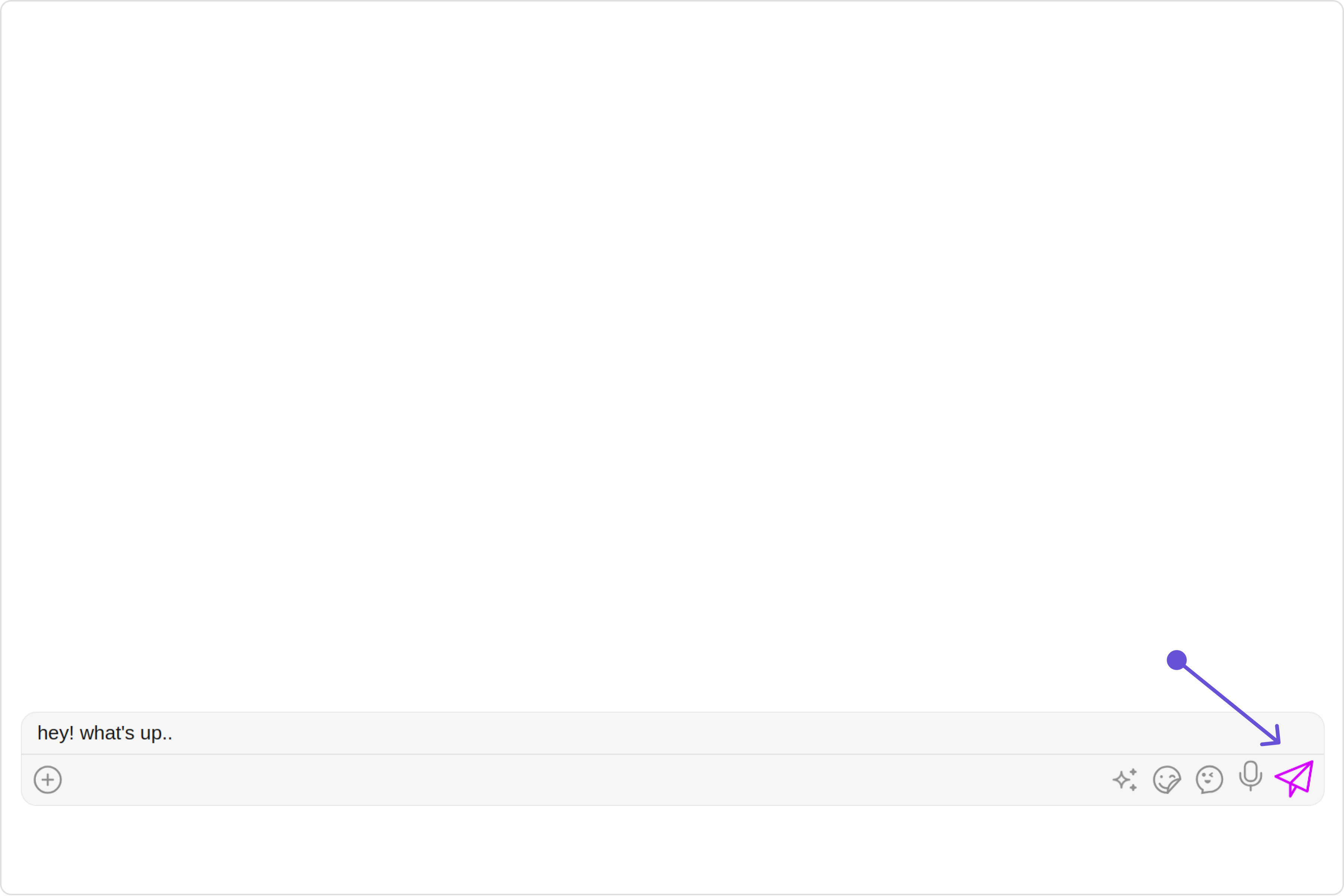
You can set a custom view in place of the already existing send button view. Using the following method.
Example
import React from "react";
import { CometChat } from "@cometchat/chat-sdk-javascript";
import { CometChatMessageComposer, IconStyle } from "@cometchat/chat-uikit-react";

  export function MessageComposerDemo() {
    const [chatUser, setChatUser] = React.useState<CometChat.User>()
    React.useEffect(() => {
        CometChat.getUser("uid").then((user) => {
            setChatUser(user);
        })
    }, [])
    const getSendButtonView = (userOrGroup: CometChat.User | CometChat.Group, composerId: ComposerId): JSX.Element => {
        const iconStyle = new IconStyle({
            iconTint:"#d400ff",
            height:"30px",
            width:"30px"
        })
        return (
            <cometchat-icon name="send message" URL="your custom icon url" iconStyle={JSON.stringify(iconStyle)} />
        );
    };

    return chatUser ? (
      <div>
        <CometChatMessageComposer
          user={chatUser}
          sendButtonView={getSendButtonView}
        />
      </div>
    ) : null;
  }
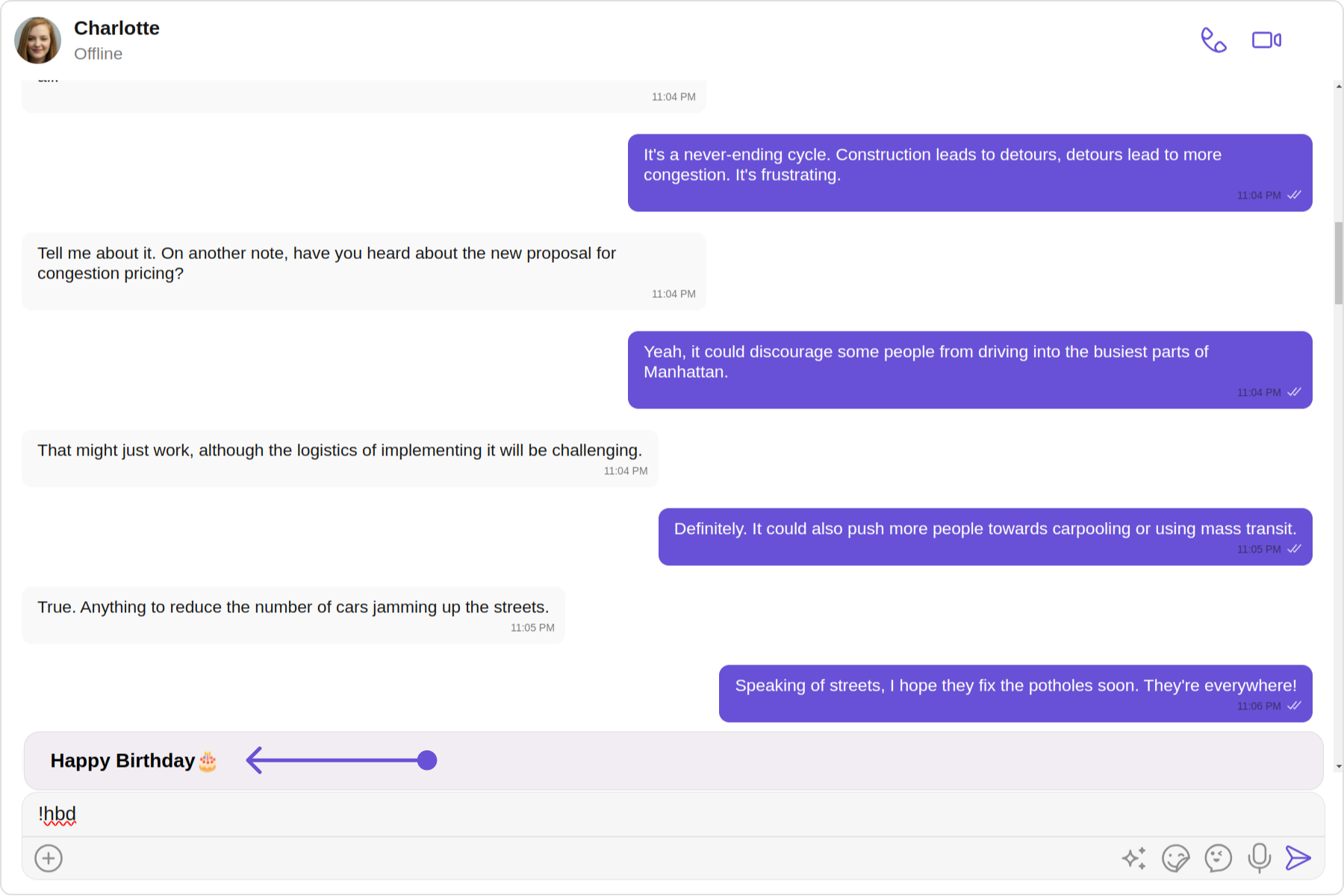
You can set custom headerView to the MessageComposer component using the following method
In the following example, we’re going to apply a mock chat bot button to the MessageComposer Component using the headerView property.
Example
import React from "react";
import { CometChat } from "@cometchat/chat-sdk-javascript";
import { CometChatMessageComposer } from "@cometchat/chat-uikit-react";

  export function MessageComposerDemo() {
    const [chatUser, setChatUser] = React.useState<CometChat.User>()
    React.useEffect(() => {
        CometChat.getUser("uid").then((user) => {
            setChatUser(user);
        })
    }, [])
    const getHeaderView = () => {
        return (
            <div style={{ height: '40px', width: '100px', background: '#a46efa', borderRadius: '20px', display: 'flex', justifyContent: 'center', alignItems: 'center',  margin:'10px'}}>
                <button style={{ height: '40px', width: '40px', background: '#a46efa', border: 'none', display: 'flex', justifyContent: 'center', alignItems: 'center' }}>
                    <img src="custom image" style={{ height: 'auto', width: '100%', maxWidth: '100%', maxHeight: '100%', borderRadius: '50%'}} alt="bot" />
                    <span>Chat Bot</span>
                </button>
            </div>
        )
    }
    return chatUser ? (
      <div>
        <CometChatMessageComposer
          user={chatUser}
          headerView={getHeaderView()}
        />
      </div>
    ) : null;
  }
TextFormatters
Assigns the list of text formatters. If the provided list is not null, it sets the list. Otherwise, it assigns the default text formatters retrieved from the data source. To configure the existing Mentions look and feel check out CometChatMentionsFormatter
Example
Configuration
Configurations offer the ability to customize the properties of each component within a Composite Component.
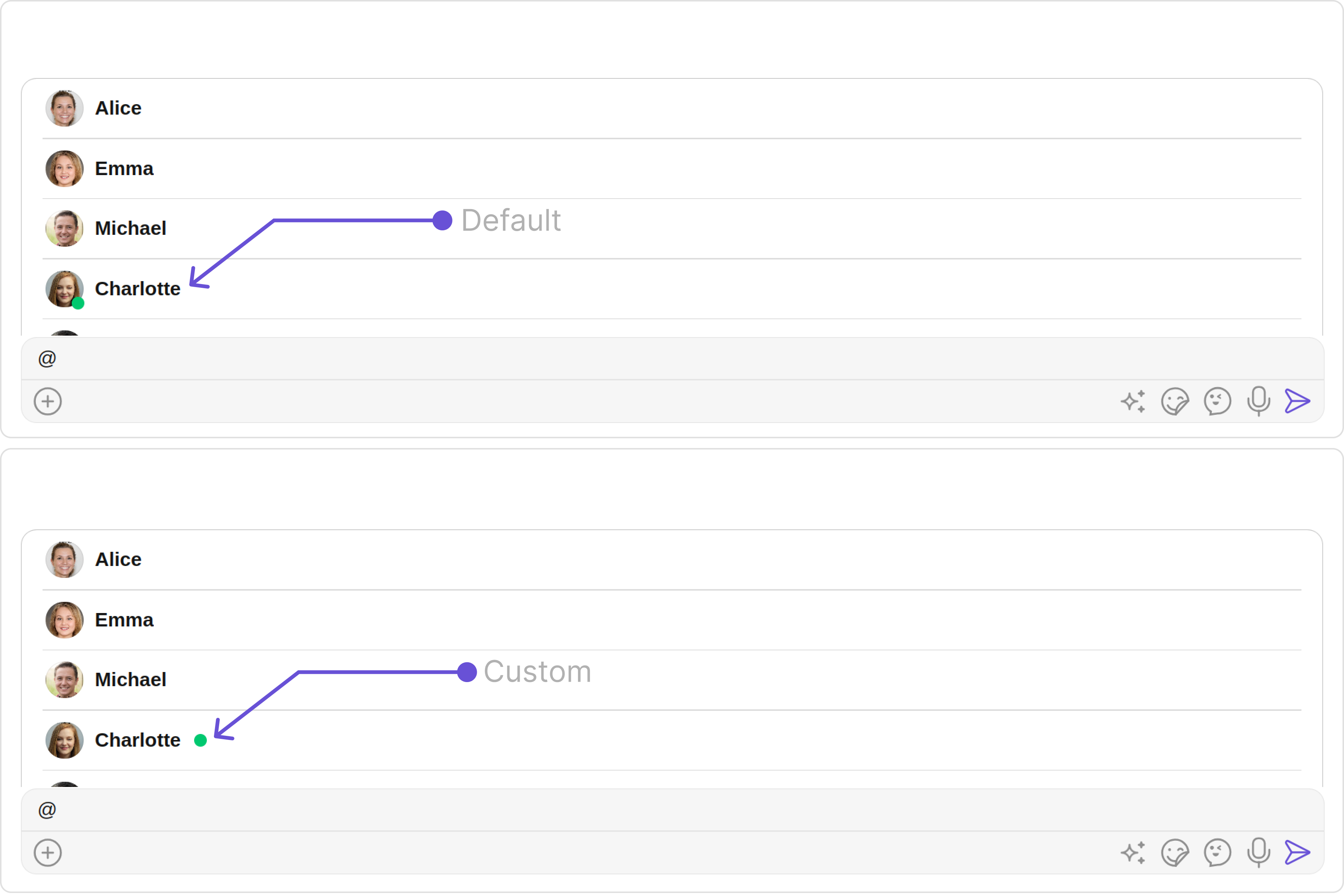
UserMemberWrapper
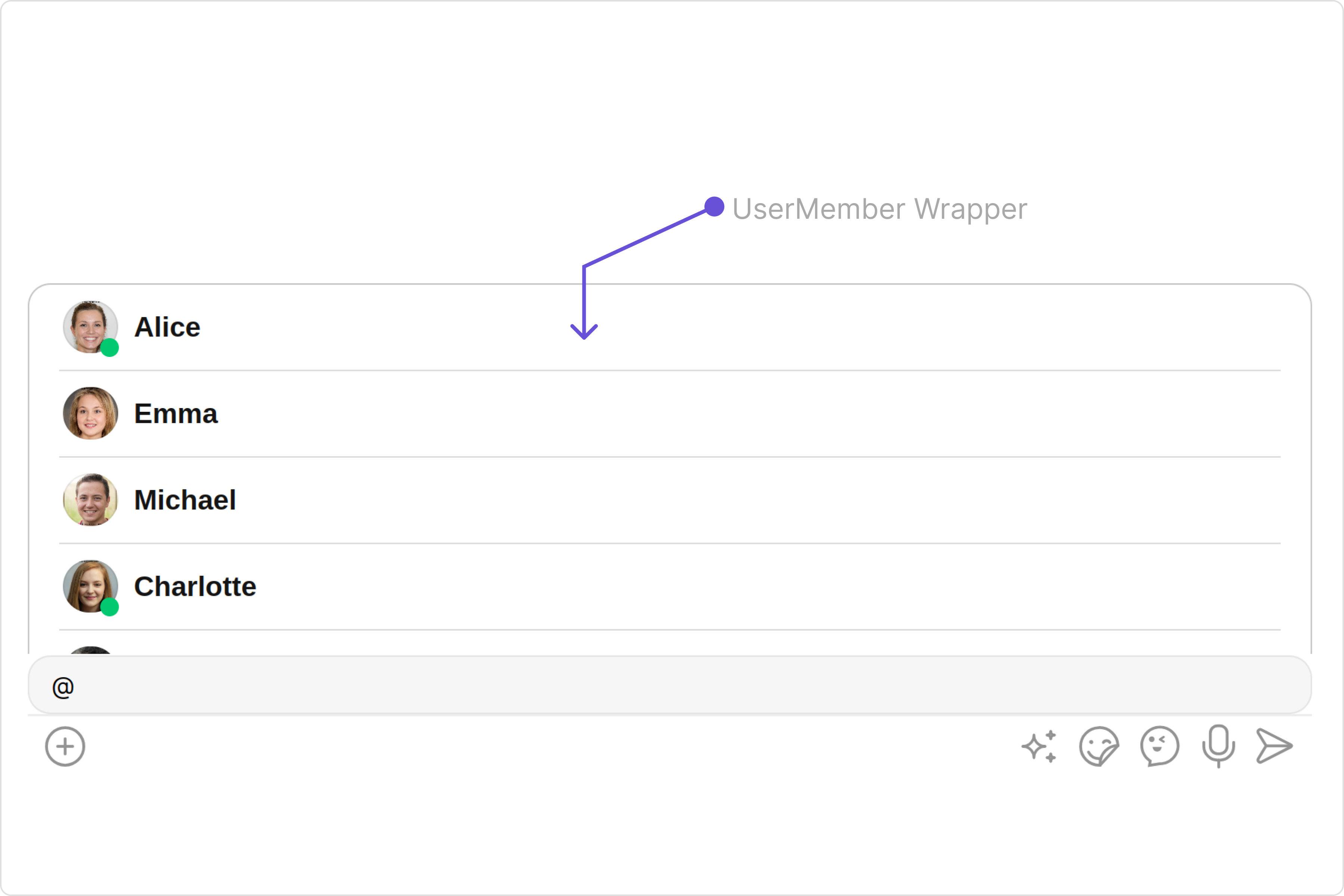
From the MessageComposer, you can navigate to the UserMemberWrapper component as shown in the image.
If you wish to modify the properties of the UserMemberWrapper Component, you can use the UserMemberWrapperConfiguration object.
import React from "react";
import { CometChat } from "@cometchat/chat-sdk-javascript";
import { CometChatMessageComposer, UserMemberWrapperConfiguration, UserPresencePlacement } from "@cometchat/chat-uikit-react";

  export function MessageComposerDemo() {
    const [chatUser, setChatUser] = React.useState<CometChat.User>()
    React.useEffect(() => {
        CometChat.getUser("uid").then((user) => {
            setChatUser(user);
        })
    }, [])

    return chatUser ? (
      <div>
        <CometChatMessageComposer
          user={chatUser}
          userMemberWrapperConfiguration={new UserMemberWrapperConfiguration({
           userPresencePlacement: UserPresencePlacement.right,
           //properties of UserMemberWrapper
          })}
        />
      </div>
    ) : null;
  }
UserMemberWrapperConfiguration indeed provides access to all the Action, Filters, Styles, Functionality, and Advanced properties of the UserMemberWrapper component.
Please note that the properties marked with the report symbol are not accessible within the Configuration Object.
Example
In the above example, we are styling a few properties of the UserMemberWrapper component using UserMemberWrapperConfiguration.